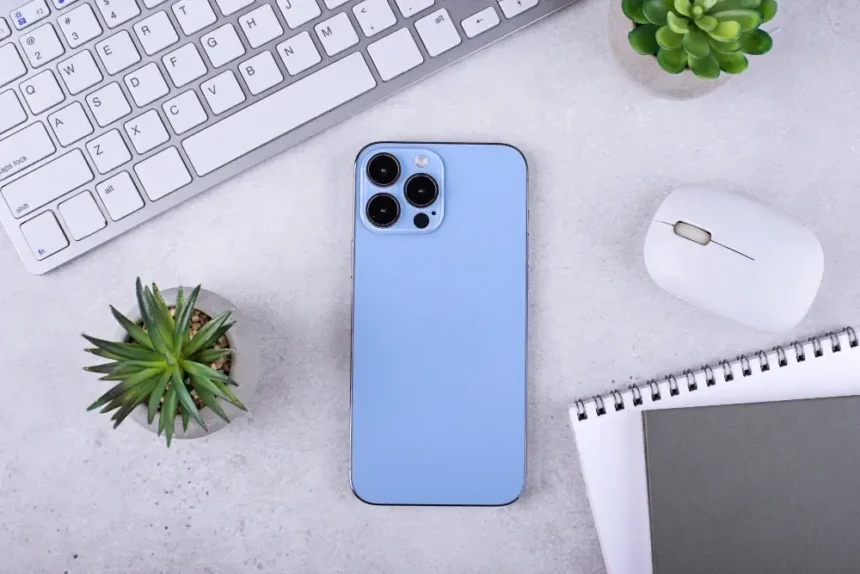
Setting up an eSIM on an iPhone allows you to activate a mobile plan digitally without using a physical SIM card. This guide explains how to set up and activate eSIM on an iPhone, covering all available methods, including QR code activation, carrier apps, and manual configuration. It also explains how to manage eSIM settings, use Dual SIM features, and resolve common activation issues, so you can start using your cellular plan quickly and reliably.
What Is eSIM on iPhone?
An eSIM (embedded SIM) is a digital SIM that is built directly into your iPhone’s hardware. Unlike a traditional SIM card, which you insert and remove physically, an eSIM is activated electronically by your mobile carrier.
Apple introduced eSIM support starting with the iPhone XS series, and since then it has become a standard feature across most modern iPhone models. In some regions, newer iPhones no longer include a physical SIM tray at all, making eSIM the primary method of cellular connectivity.
With eSIM, your iPhone can store multiple carrier profiles, allowing you to switch between plans or carriers without handling a physical card.
Why Use eSIM on iPhone?
Before diving into the setup process, it’s helpful to understand why eSIM is becoming so popular.
1. Convenience
You can activate a mobile plan in minutes without visiting a store or waiting for a SIM card delivery.
2. Dual SIM Support
eSIM allows you to use two phone numbers on one iPhone, making it ideal for separating work and personal calls or combining a local and international plan.
3. Travel-Friendly
Travelers can add a temporary data plan for another country without removing their primary SIM.
4. Faster Carrier Switching
Changing carriers is often as simple as scanning a new QR code or using a carrier app.
5. Better Security
Because eSIM can’t be physically removed, it reduces the risk of SIM theft or unauthorized SIM swapping.
What You Need Before Setting Up eSIM on iPhone
Before you begin the setup process, make sure the following requirements are met:
- An eSIM-compatible iPhone
- A carrier that supports eSIM
- A stable internet connection (Wi-Fi recommended)
- One of the following from your carrier:
- A QR code
- A carrier activation app
- Manual activation details (SM-DP+ address and activation code)
- A QR code
It’s also strongly recommended to update your iPhone to the latest version of iOS to avoid activation errors.
How to Set Up eSIM on iPhone: Step-by-Step
There are three main ways to set up eSIM on an iPhone. Your carrier will typically recommend one of these methods.
Method 1: Set Up eSIM Using a QR Code
This is the most common and easiest method.
Step 1: Open Settings
On your iPhone, go to Settings and tap Cellular (or Mobile Data, depending on your region).
Step 2: Add a Cellular Plan
Tap Add Cellular Plan.
Step 3: Scan the QR Code
Use your iPhone’s camera to scan the QR code provided by your carrier.
Step 4: Follow On-Screen Instructions
Your iPhone will automatically detect the plan and guide you through activation.
Step 5: Label Your Plan
You’ll be prompted to name the plan (for example: “Primary,” “Work,” or “Travel”).
Once completed, your eSIM should activate within a few minutes.
Method 2: Set Up eSIM Using a Carrier App
Some carriers allow eSIM activation directly through their official app.
Step 1: Download the Carrier App
Install your mobile carrier’s app from the App Store.
Step 2: Sign In
Log in using your phone number or account credentials.
Step 3: Start eSIM Setup
Look for an option such as “Set Up eSIM” or “Activate eSIM.”
Step 4: Complete Activation
Follow the app’s instructions to download and activate your eSIM profile.
This method is especially popular with international and digital-first carriers.
Method 3: Manual eSIM Setup
Manual setup is less common but useful when QR codes aren’t available.
Step 1: Open Cellular Settings
Go to Settings → Cellular → Add Cellular Plan.
Step 2: Choose Manual Entry
Tap Enter Details Manually.
Step 3: Enter Carrier Information
Input the SM-DP+ address and activation code provided by your carrier.
Step 4: Confirm and Activate
Follow the prompts until the activation is complete.
This method requires precise information, so double-check all entries.
Also Read – Hash on a Mac Keyboard
How to Use Dual SIM with eSIM on iPhone
One of the biggest advantages of eSIM is the ability to use Dual SIM.
After setting up eSIM, you can:
- Choose which number to use for calls
- Select which plan handles mobile data
- Assign contacts to specific lines
- Switch plans instantly in Settings
To manage Dual SIM:
- Go to Settings → Cellular
- Tap Default Voice Line
- Select your preferred line
- Choose which plan to use for mobile data
You can also enable or disable lines without removing them.
Common eSIM Setup Problems and How to Fix Them
While eSIM setup is usually smooth, occasional issues can occur.
eSIM Won’t Activate
- Restart your iPhone
- Ensure you’re connected to Wi-Fi
- Verify the QR code hasn’t already been used
No Signal After Activation
- Check that the plan is turned on in Cellular Settings
- Toggle Airplane Mode on and off
- Restart the device
“Unable to Add Cellular Plan” Error
- Update iOS to the latest version
- Contact your carrier for a new QR code
- Confirm your iPhone is unlocked
If problems persist, your carrier’s support team can reissue activation details.
How to Remove or Change an eSIM on iPhone
You can remove an eSIM at any time if you switch carriers or no longer need the plan.
- Go to Settings → Cellular
- Tap the eSIM plan you want to remove
- Select Remove Cellular Plan
- Confirm the action
Removing an eSIM does not cancel your carrier subscription—you must contact the carrier separately if needed.
Is eSIM Safe to Use on iPhone?
Yes, eSIM is considered highly secure. It uses encrypted communication and carrier authentication, similar to traditional SIM cards. Because it’s embedded in the device, it’s also less vulnerable to physical tampering.
As long as you:
- Use reputable carriers
- Keep your iPhone updated
- Secure your Apple ID
eSIM is a safe and reliable option for everyday use.
Final Thoughts
eSIM represents the future of mobile connectivity, and iPhone users are at the forefront of this transition. Whether you’re looking for a cleaner setup, dual numbers, or a better travel experience, eSIM offers flexibility that physical SIM cards simply can’t match.
By following this step-by-step guide, you can set up eSIM on your iPhone confidently, without technical stress or unnecessary trips to a carrier store. Once activated, managing your cellular plans becomes easier, faster, and more adaptable to your lifestyle.
FAQs
Yes. Most eSIM-compatible iPhones support Dual SIM, allowing you to use one eSIM and one physical SIM at the same time. You can choose which line is used for calls, messages, and mobile data directly from your iPhone settings.
No significant difference has been found between eSIM and physical SIM usage. Battery performance mainly depends on network strength, usage patterns, and background activity rather than the type of SIM used.
Yes. Apple allows eSIM transfer during iPhone setup or through Settings → Cellular → Add eSIM on the new device. Your carrier must support eSIM transfer for this feature to work.
Resetting your iPhone may remove the eSIM profile. Some reset options allow you to keep your cellular plan, but it’s recommended to confirm with your carrier before performing a factory reset.
No. While eSIM support is growing, not all carriers offer it yet. Availability depends on your country, carrier, and iPhone model. Always check with your carrier before attempting to activate eSIM.