As technology continues to evolve, so do the demands on your computer. Whether you’re working, studying, gaming, or browsing, a slow and unresponsive PC can be frustrating. Over time, systems naturally lose performance due to clutter, outdated settings, and unnecessary background processes.
The good news is that optimizing your PC in 2026 doesn’t require technical expertise. With tools like Advanced SystemCare, you can restore speed, improve efficiency, and keep your system running at its best. As a powerful PC cleaner and reliable Windows cleaner, it simplifies the entire optimization process.
Why PC Optimization Is Important
Many users ignore system maintenance until their computer becomes noticeably slow. However, regular optimization is essential for maintaining performance.
Here are some common reasons your PC may slow down:
Accumulated Junk Files
Temporary files, cache, and leftover data take up storage space and slow down your system.
Too Many Startup Programs
Applications that launch during startup can increase boot time significantly.
Fragmented Registry
Invalid or broken registry entries can affect system stability.
Background Processes
Hidden services consume CPU and RAM, reducing performance.
Optimizing your PC helps eliminate these issues and ensures smooth operation.
What Is Advanced SystemCare?
Advanced SystemCare is an all-in-one optimization tool designed to clean, speed up, and protect your computer. It combines multiple features into one easy-to-use interface, making it suitable for both beginners and advanced users. Not just a Windows cleaner to remove unnecessary files and fix system issues, it can improve speed and overall performance.
Key Features for Peak Performance
1. AI-Powered Optimization
Automatically detects and fixes performance issues based on your usage patterns.
2. Deep System Cleaning
Removes junk files, temporary data, and privacy traces.
3. Startup Optimization
Disables unnecessary startup programs to reduce boot time.
4. Registry Cleaner
Fixes invalid registry entries for better stability.
5. Real-Time Monitoring
Tracks CPU, RAM, and disk usage to help you manage system resources.
Step-by-Step Tutorial to Optimize Your PC
Follow these simple steps to achieve peak performance. This whole process can significantly improve system speed and responsiveness.
Step 1: Install the Software
Download and install this Windows cleaner from the official website.
Step 2: Launch the Program
Open the application to access the Care dashboard.
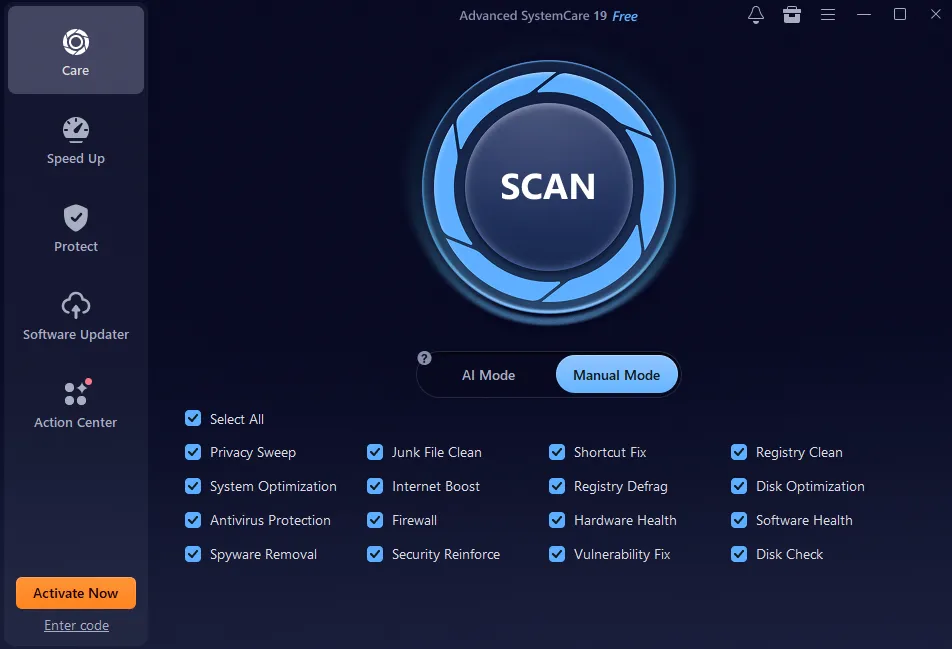
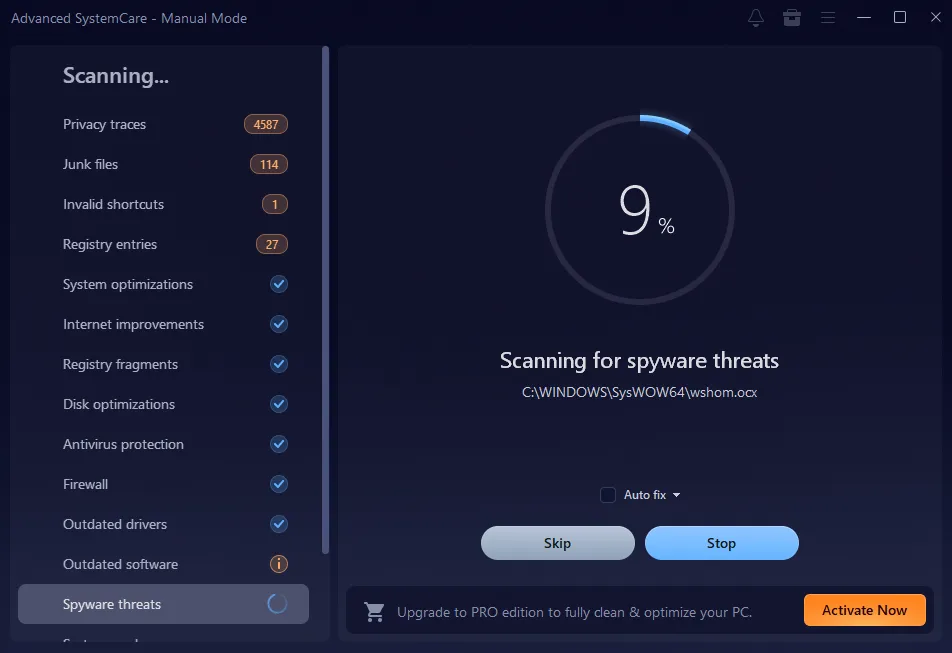
Step 3: Run a Full Scan and Review the Results
Click the Scan button to analyze your system for issues such as junk files, registry errors, and privacy risks. Check the list of detected problems.
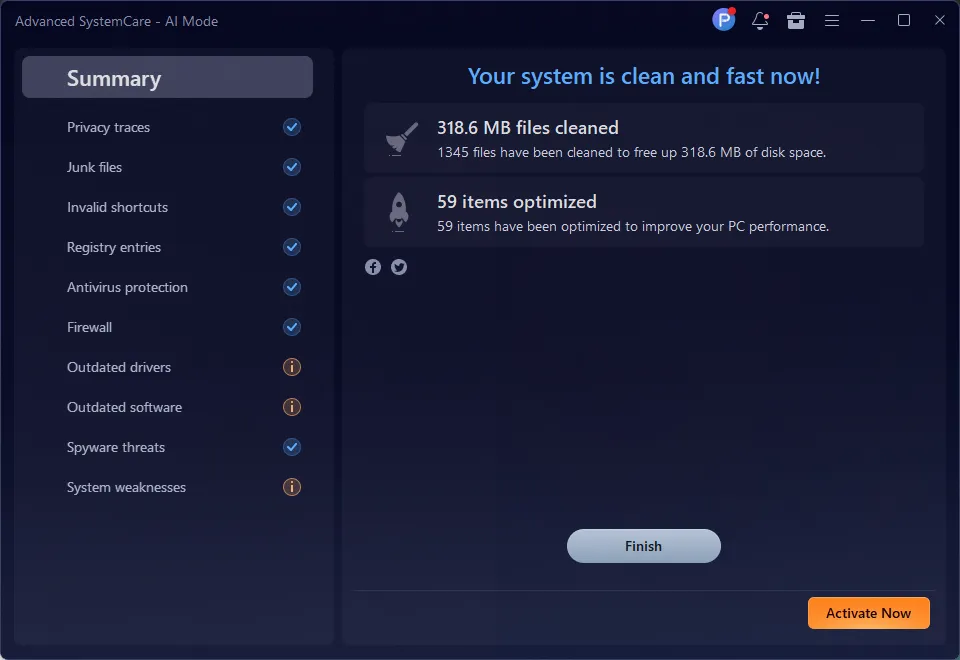
Step 4: Apply Fixes
Click “Fix” to clean and optimize your system.
Step 5: Optimize Startup
Go to the Speed Up tab and select the Startup Optimizer section to disable unnecessary programs.
Step 6: Monitor Performance
Use the real-time monitor to track improvements.
Advanced Tips for Better Performance
To get the most out of your system, follow these additional tips:
Keep Your System Updated
Regular updates improve performance and security.
Limit Background Apps
Close unnecessary programs running in the background.
Perform Regular Cleaning
Use a PC cleaner weekly to maintain performance.
Manage Storage
Maintain sufficient free space on your hard drive to ensure smooth performance.
Consistency is key to maintaining peak performance.
Benefits of Using Advanced SystemCare
Using Advanced SystemCare regularly offers several advantages:
Faster Boot Time
Reducing startup programs helps your PC start quickly.
Improved Speed
Cleaning junk files frees up system resources.
Better Stability
Fixing registry issues reduces crashes and errors.
Enhanced User Experience
A clean and optimized system is easier and more enjoyable to use.
Common Mistakes to Avoid
While optimizing your PC, avoid these common mistakes:
- Ignoring regular maintenance
- Installing too many unnecessary programs
- Disabling important system services
- Using unreliable optimization tools
A trusted Windows cleaner like Advanced SystemCare helps you avoid these problems.
Why Advanced SystemCare Is Ideal for 2026
In 2026, users expect fast and efficient performance from their systems. Advanced SystemCare is your best PC cleaner, which meets these expectations by combining advanced technology with ease of use. It offers:
- One-click optimization
- Comprehensive cleaning features
- Smart performance management
- User-friendly design
No matter your skill level, it offers all the tools needed to keep your PC running efficiently.
Final Thoughts
A slow computer can affect productivity and create unnecessary frustration. Fortunately, optimizing your PC is easier than ever with the right tools. Advanced SystemCare acts as both a powerful PC cleaner and an efficient Windows cleaner, helping you remove clutter, improve speed, and maintain peak performance. By following simple steps and performing regular maintenance, you can keep your system running like new. If you want your PC to deliver the best performance in 2026, taking a few minutes to optimize it is definitely worth it.