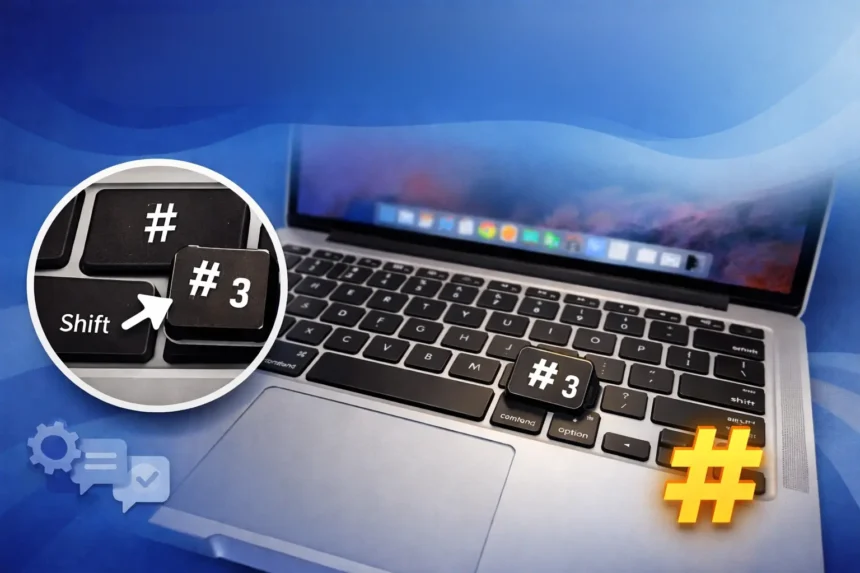
If you’re new to macOS or switching from Windows, one of the first small but frustrating challenges you might face is figuring out how to type special characters. A surprisingly common question is how to type the hash on a Mac keyboard. While it seems like a simple symbol, the hash (#) can be confusing due to different keyboard layouts and regional settings.
In this detailed guide, we’ll walk you through everything you need to know about the hash on a Mac keyboard, where to find it, how to type it on different layouts, what it’s used for, and how to troubleshoot if it’s not working. By the end, you’ll be typing the hash symbol confidently and effortlessly.
What Is the Hash Symbol (#)?
The hash symbol (#) is a small character with big importance. Depending on context, it may also be called:
- Hash
- Pound sign
- Number sign
- Sharp (less common)
Despite the different names, it’s the same symbol and widely used across computing, communication, and everyday digital tasks.
Common Uses of the Hash Symbol
- Social media: Hashtags on platforms like X, Instagram, and LinkedIn
- Programming: Comments in languages like Python and configuration files
- File paths and URLs: Used in web anchors
- Phone systems: Interactive voice response (IVR) menus
- Markdown formatting: Headings and structure
Because of its frequent use, knowing how to access the hash on a Mac keyboard is essential.
Where Is the Hash on a Mac Keyboard?
The exact location of the hash key depends on your keyboard layout. This is where most confusion arises, especially for users outside the United States.
US Mac Keyboard Layout
On a standard US Mac keyboard, the hash symbol is easy to access:
- Shortcut: Shift + 3
The # symbol shares the same key as the number 3.
Why It Feels Different From Windows
Although Windows keyboards also use Shift + 3 for the hash in the US layout, Mac keyboards have slightly different key labeling and modifier behavior, which can throw off new users.
Also Read – Comparing Loopio to Qvidian: Why Qvidian is the Better Tool for Proposal Automation
How to Type Hash on a Mac Keyboard (Step-by-Step)
Here’s the simplest way to type the hash on a Mac keyboard:
- Make sure your keyboard input source is set correctly
- Hold down the Shift key
- Press the 3 key
- Release both keys
You should now see the # symbol appear.
If this doesn’t work, don’t worry, we’ll cover troubleshooting shortly.
Hash on a Mac Keyboard: UK and International Layouts
If you’re using a UK or European keyboard, the hash symbol is not on the 3 key. This is one of the biggest sources of confusion.
UK Mac Keyboard
On a UK Mac keyboard, the hash symbol is usually located near the Return/Enter key.
- Shortcut: Option (⌥) + 3 or a dedicated # key depending on the model
Some UK keyboards even have a dedicated hash key above the Return key.
European and Other Layouts
- German, French, and Spanish layouts often place # on different keys
- Some require the Option (⌥) key
- Others may require Option + Shift
Because of this, learning your specific keyboard layout is crucial when typing the hash on a Mac keyboard internationally.
How to Check Your Keyboard Layout on macOS
If the hash symbol isn’t appearing where you expect, your keyboard layout setting may not match your physical keyboard.
Steps to Check Keyboard Layout:
- Open System Settings
- Go to Keyboard
- Select Input Sources
- Check which layout is active (US, UK, etc.)
- Add or switch layouts if needed
Using the correct layout ensures the hash on a Mac keyboard behaves as expected.
Using Keyboard Viewer to Find the Hash Symbol
macOS includes a built-in tool called Keyboard Viewer, which visually shows where every symbol is.
How to Enable Keyboard Viewer:
- Go to System Settings → Keyboard
- Enable Show Keyboard Viewer in menu bar
- Click the input icon in the menu bar
- Select Show Keyboard Viewer
- Press Shift or Option to reveal hidden symbols
This is an excellent way to locate the hash on a Mac keyboard, especially for unfamiliar layouts.
Hash on MacBook vs External Keyboards
The method for typing the hash symbol is generally the same, but hardware differences matter.
MacBook Built-in Keyboard
- Compact layout
- Symbols may feel “hidden”
- Relies heavily on modifier keys
Apple Magic Keyboard
- Similar behavior to MacBook
- UK versions may include a dedicated hash key
Third-Party Keyboards
- Behavior depends on layout and configuration
- Some default to Windows-style mapping
Always ensure the macOS input source matches the physical keyboard to avoid issues with the hash on a Mac keyboard.
Troubleshooting: Hash Not Working on Mac Keyboard
If you can’t type the hash symbol, try these fixes:
1. Check Input Language
A mismatched keyboard language is the most common cause.
2. Restart Your Mac
Sometimes a simple restart resets keyboard behavior.
3. Test Another App
Ensure the issue isn’t app-specific.
4. Try Keyboard Viewer
Confirm where the hash symbol actually is.
5. Reset Keyboard Settings
Remove and re-add the input source in System Settings.
These steps usually resolve problems with typing the hash on a Mac keyboard.
Hash vs Pound vs Number Sign: What’s the Difference?
Technically, there is no difference, it’s the same symbol: #.
- Hash: Common in the UK and programming
- Pound sign: Common in the US, especially for phones
- Number sign: Formal or technical usage
Why the Hash Symbol Is Important for Mac Users
Understanding how to type the hash symbol is more important than it seems.
Essential for:
- Coding and development
- Writing Markdown documents
- Social media marketing
- System commands and configuration files
If you work in tech, content creation, or digital communication, mastering the hash on a Mac keyboard saves time and frustration.
Tips for Typing Symbols Faster on a Mac
- Learn Shift and Option combinations
- Enable Keyboard Viewer permanently
- Use text replacement shortcuts
- Practice common symbols regularly
The more familiar you are with your keyboard, the easier it becomes to type symbols like the hash naturally.
Conclusion
Typing the hash on a Mac keyboard may seem confusing at first, especially if you’re switching from Windows or using an international layout. However, once you understand your keyboard settings and shortcuts, it becomes second nature.
Whether you’re using a US, UK, or international Mac keyboard, the key is knowing where the symbol lives and which modifier keys unlock it. With tools like Keyboard Viewer and proper input settings, you’ll never struggle with the hash symbol again.
Mastering small details like the hash on a Mac keyboard can significantly improve your productivity and confidence on macOS. Take a few minutes to explore your layout, practice the shortcuts, and enjoy a smoother typing experience on your Mac.
Frequently Asked Questions (FAQs)
Some layouts don’t label it clearly, or it’s accessed via modifier keys.
Yes, they are the same character (#).
Yes, use the on-screen keyboard via Accessibility settings.
Your keyboard layout is likely set to UK or another region.